> ## Documentation Index
> Fetch the complete documentation index at: https://docs-staging-automated-sdk-version-update.mintlify.site/llms.txt
> Use this file to discover all available pages before exploring further.

> Learn how to configure a progressive profile form using Forms for Actions

# Use Cases: Configure a progressive profile form using Forms

<Card title="Before you start">
  1. Create a [Machine-to-Machine Application](/docs/get-started/auth0-overview/create-applications/machine-to-machine-apps) with the following scopes enabled:

  * `read:users`
  * `update:users`
  * `create:users`
  * `read:users_app_metadata`
  * `update:users_app_metadata`
  * `create:users_app_metadata`

  2. Add a [Vault connection](/docs/customize/forms/vault) using the M2M application credentials.
</Card>

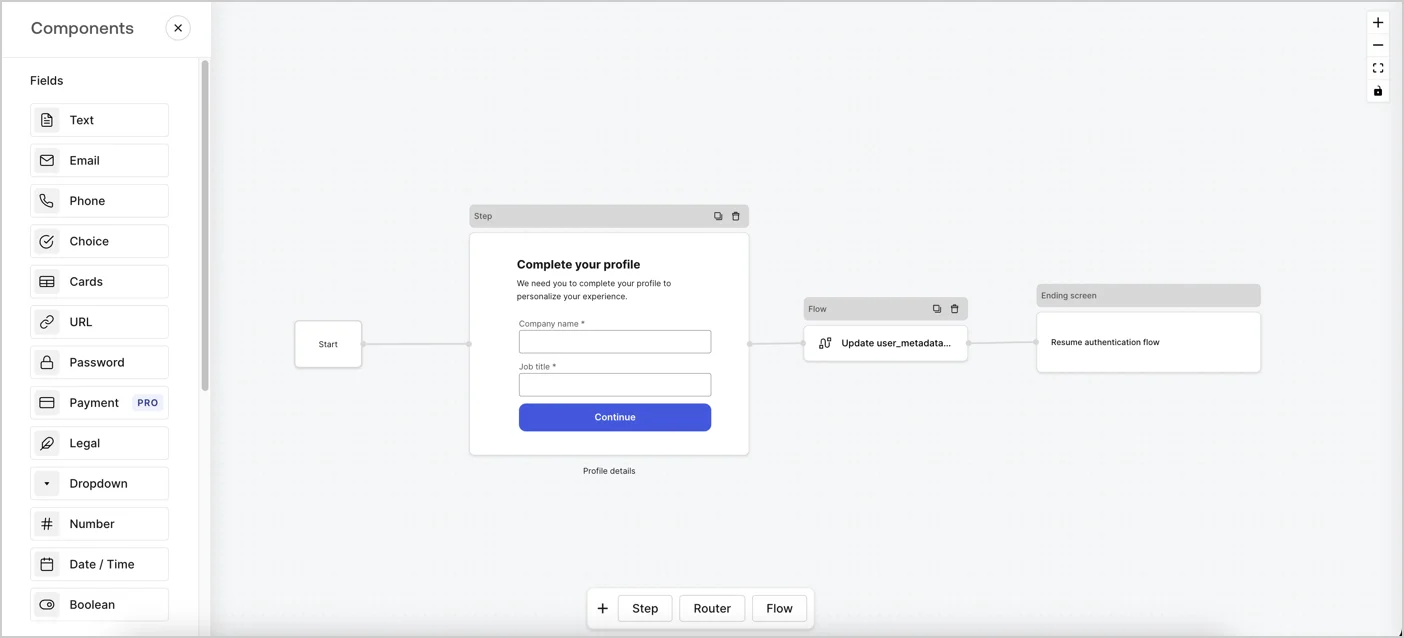
Forms for Actions allows you to create progressive profiling flows to decide when to prompt users to collect missing information, such as company name and job title, and store them as `user_metadata` attributes.
<Frame>
  <img src="https://mintcdn.com/docs-staging-automated-sdk-version-update/zvtMcohm9zCNudBh/docs/images/cdy7uua7fh8z/xUx9YmnHvnAqL19JvNtNP/60dae88f893d4ebe8e3523421e960596/Progressive-profle-overview.png?fit=max&auto=format&n=zvtMcohm9zCNudBh&q=85&s=defc7c5fe8da5bf23fcd90c1c32b633e" alt="Dashboard > Actions > Forms > Form" data-og-width="1404" width="1404" data-og-height="638" height="638" data-path="docs/images/cdy7uua7fh8z/xUx9YmnHvnAqL19JvNtNP/60dae88f893d4ebe8e3523421e960596/Progressive-profle-overview.png" data-optimize="true" data-opv="3" srcset="https://mintcdn.com/docs-staging-automated-sdk-version-update/zvtMcohm9zCNudBh/docs/images/cdy7uua7fh8z/xUx9YmnHvnAqL19JvNtNP/60dae88f893d4ebe8e3523421e960596/Progressive-profle-overview.png?w=280&fit=max&auto=format&n=zvtMcohm9zCNudBh&q=85&s=6a13839218d32bc623cffceccee7297e 280w, https://mintcdn.com/docs-staging-automated-sdk-version-update/zvtMcohm9zCNudBh/docs/images/cdy7uua7fh8z/xUx9YmnHvnAqL19JvNtNP/60dae88f893d4ebe8e3523421e960596/Progressive-profle-overview.png?w=560&fit=max&auto=format&n=zvtMcohm9zCNudBh&q=85&s=aaa32c52cfad2426f0877457f0659abf 560w, https://mintcdn.com/docs-staging-automated-sdk-version-update/zvtMcohm9zCNudBh/docs/images/cdy7uua7fh8z/xUx9YmnHvnAqL19JvNtNP/60dae88f893d4ebe8e3523421e960596/Progressive-profle-overview.png?w=840&fit=max&auto=format&n=zvtMcohm9zCNudBh&q=85&s=04d54647d896c8c459e9461bf22135e0 840w, https://mintcdn.com/docs-staging-automated-sdk-version-update/zvtMcohm9zCNudBh/docs/images/cdy7uua7fh8z/xUx9YmnHvnAqL19JvNtNP/60dae88f893d4ebe8e3523421e960596/Progressive-profle-overview.png?w=1100&fit=max&auto=format&n=zvtMcohm9zCNudBh&q=85&s=2afb5383a90e9abc1fce55a25d2e7f7d 1100w, https://mintcdn.com/docs-staging-automated-sdk-version-update/zvtMcohm9zCNudBh/docs/images/cdy7uua7fh8z/xUx9YmnHvnAqL19JvNtNP/60dae88f893d4ebe8e3523421e960596/Progressive-profle-overview.png?w=1650&fit=max&auto=format&n=zvtMcohm9zCNudBh&q=85&s=57a4512212ed0c63c5e7c65197b71428 1650w, https://mintcdn.com/docs-staging-automated-sdk-version-update/zvtMcohm9zCNudBh/docs/images/cdy7uua7fh8z/xUx9YmnHvnAqL19JvNtNP/60dae88f893d4ebe8e3523421e960596/Progressive-profle-overview.png?w=2500&fit=max&auto=format&n=zvtMcohm9zCNudBh&q=85&s=3662968d3edd6c1a4348c3824f701914 2500w" />
</Frame>

The sections below outline how you can create a progressive profile form using nodes and flows, along with steps for adding your form to a [Post Login Action](/docs/customize/actions/explore-triggers/signup-and-login-triggers/login-trigger).

## Create a form from scratch

Follow these steps to create a form to gather information:

1. Open the Form editor by selecting **Auth0 Dashboard > Actions > Forms.**
2. Select **Create Form** > **Start from scratch**.

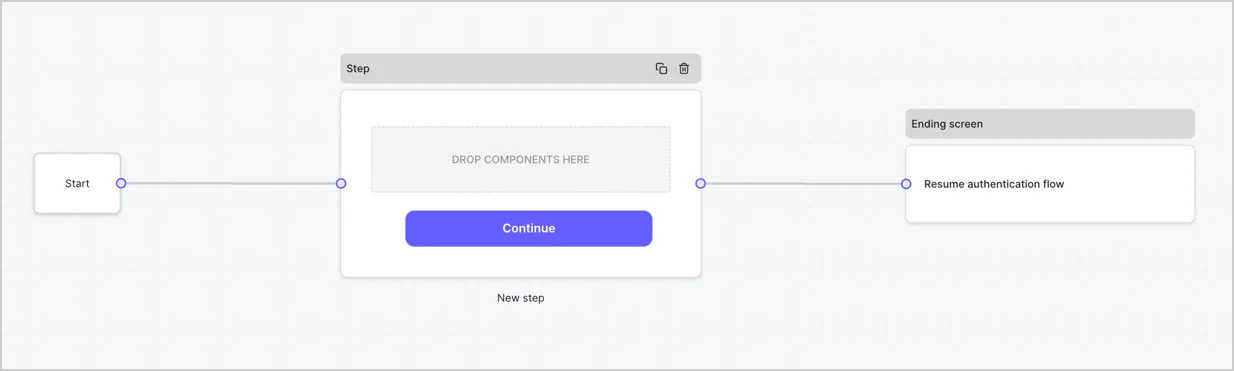
By default, a new form contains a Start node, a Step node, and an Ending screen node.
<Frame>
  <img src="https://mintcdn.com/docs-staging-automated-sdk-version-update/NN5Ou-dfzP_-ow6x/docs/images/cdy7uua7fh8z/2TZ9jSjgEcARFpULI6hz4R/a4319a1bd482f2ee5cc23100fdb2f42c/New-form-Forms-for-action-use-case.png?fit=max&auto=format&n=NN5Ou-dfzP_-ow6x&q=85&s=3920b0e7fc75d6f46e1b6122dff11522" alt="Dashboard > Forms > Use Cases > Form" data-og-width="1234" width="1234" data-og-height="371" height="371" data-path="docs/images/cdy7uua7fh8z/2TZ9jSjgEcARFpULI6hz4R/a4319a1bd482f2ee5cc23100fdb2f42c/New-form-Forms-for-action-use-case.png" data-optimize="true" data-opv="3" srcset="https://mintcdn.com/docs-staging-automated-sdk-version-update/NN5Ou-dfzP_-ow6x/docs/images/cdy7uua7fh8z/2TZ9jSjgEcARFpULI6hz4R/a4319a1bd482f2ee5cc23100fdb2f42c/New-form-Forms-for-action-use-case.png?w=280&fit=max&auto=format&n=NN5Ou-dfzP_-ow6x&q=85&s=93f061ed9c5113a3ab53375cefb14a36 280w, https://mintcdn.com/docs-staging-automated-sdk-version-update/NN5Ou-dfzP_-ow6x/docs/images/cdy7uua7fh8z/2TZ9jSjgEcARFpULI6hz4R/a4319a1bd482f2ee5cc23100fdb2f42c/New-form-Forms-for-action-use-case.png?w=560&fit=max&auto=format&n=NN5Ou-dfzP_-ow6x&q=85&s=51dc6e03c18cfaa125fd89c6952277b2 560w, https://mintcdn.com/docs-staging-automated-sdk-version-update/NN5Ou-dfzP_-ow6x/docs/images/cdy7uua7fh8z/2TZ9jSjgEcARFpULI6hz4R/a4319a1bd482f2ee5cc23100fdb2f42c/New-form-Forms-for-action-use-case.png?w=840&fit=max&auto=format&n=NN5Ou-dfzP_-ow6x&q=85&s=3e176109373e41c6a2fa2c5f5a1add73 840w, https://mintcdn.com/docs-staging-automated-sdk-version-update/NN5Ou-dfzP_-ow6x/docs/images/cdy7uua7fh8z/2TZ9jSjgEcARFpULI6hz4R/a4319a1bd482f2ee5cc23100fdb2f42c/New-form-Forms-for-action-use-case.png?w=1100&fit=max&auto=format&n=NN5Ou-dfzP_-ow6x&q=85&s=ced8a93f9f0a29fe1f63014012cb9ed9 1100w, https://mintcdn.com/docs-staging-automated-sdk-version-update/NN5Ou-dfzP_-ow6x/docs/images/cdy7uua7fh8z/2TZ9jSjgEcARFpULI6hz4R/a4319a1bd482f2ee5cc23100fdb2f42c/New-form-Forms-for-action-use-case.png?w=1650&fit=max&auto=format&n=NN5Ou-dfzP_-ow6x&q=85&s=6dae80ccc856511135083ad62640b134 1650w, https://mintcdn.com/docs-staging-automated-sdk-version-update/NN5Ou-dfzP_-ow6x/docs/images/cdy7uua7fh8z/2TZ9jSjgEcARFpULI6hz4R/a4319a1bd482f2ee5cc23100fdb2f42c/New-form-Forms-for-action-use-case.png?w=2500&fit=max&auto=format&n=NN5Ou-dfzP_-ow6x&q=85&s=7f466cb1f1577f80178107056ba2d5d1 2500w" />
</Frame>

### Configure the Step node

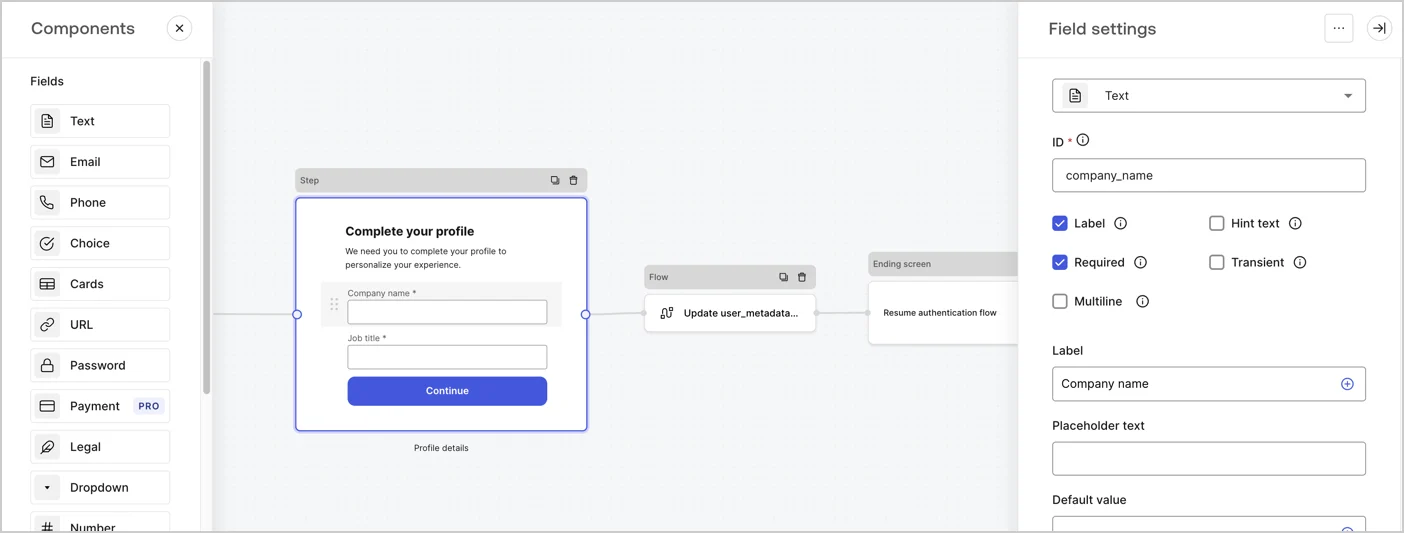
The Step node is the graphical interface visible to users. Add [Fields](/docs/customize/forms/nodes-and-components) to the Step node to collect the user's company name and job title values by following these steps:

1. Drag a **Rich text** field from the **Components menu** into the **Step** node.

   * **Rich text**: Enter a custom message.

     * **Example**: `Complete your profile! We need you to complete your profile to personalize your experience.`
   * Select **Save**.
2. Drag a **Text** field into the **Step** node.

   * **ID**: Enter `company_name`.
   * **Label**: Enable the checkbox.
   * **Label**: Enter `Company name`.
   * **Required**: Enable the checkbox.
   * Select **Save**.
3. Drag a **Text** field into the **Step** node.

   1. **ID**: Enter `job_title`.
   2. **Label**: Enter `Job title`.
   3. **Label**: Enable the checkbox.
   4. **Required**: Enable the checkbox.
   5. Select **Save**.
4. Select **Publish** to save.
<Frame>
  <img src="https://mintcdn.com/docs-staging-automated-sdk-version-update/VmzdOyHdFsCY7yMN/docs/images/cdy7uua7fh8z/6H1lRzwKyYioQyQJ9MtIoM/aa248e92fc028a68a5b92ff361a11644/progressive-profile-step.png?fit=max&auto=format&n=VmzdOyHdFsCY7yMN&q=85&s=b7e3b78cf6a9fb5dec5f7c9d24737c32" alt="Dashboard > Actions > Forms > Form > Step node" data-og-width="1404" width="1404" data-og-height="533" height="533" data-path="docs/images/cdy7uua7fh8z/6H1lRzwKyYioQyQJ9MtIoM/aa248e92fc028a68a5b92ff361a11644/progressive-profile-step.png" data-optimize="true" data-opv="3" srcset="https://mintcdn.com/docs-staging-automated-sdk-version-update/VmzdOyHdFsCY7yMN/docs/images/cdy7uua7fh8z/6H1lRzwKyYioQyQJ9MtIoM/aa248e92fc028a68a5b92ff361a11644/progressive-profile-step.png?w=280&fit=max&auto=format&n=VmzdOyHdFsCY7yMN&q=85&s=b57d9b364ac70007da1e2a82942ebc98 280w, https://mintcdn.com/docs-staging-automated-sdk-version-update/VmzdOyHdFsCY7yMN/docs/images/cdy7uua7fh8z/6H1lRzwKyYioQyQJ9MtIoM/aa248e92fc028a68a5b92ff361a11644/progressive-profile-step.png?w=560&fit=max&auto=format&n=VmzdOyHdFsCY7yMN&q=85&s=935e5d15b4a97ee47aaab16de74d9bae 560w, https://mintcdn.com/docs-staging-automated-sdk-version-update/VmzdOyHdFsCY7yMN/docs/images/cdy7uua7fh8z/6H1lRzwKyYioQyQJ9MtIoM/aa248e92fc028a68a5b92ff361a11644/progressive-profile-step.png?w=840&fit=max&auto=format&n=VmzdOyHdFsCY7yMN&q=85&s=794a657c27c8da01ef50e0aec0152fd0 840w, https://mintcdn.com/docs-staging-automated-sdk-version-update/VmzdOyHdFsCY7yMN/docs/images/cdy7uua7fh8z/6H1lRzwKyYioQyQJ9MtIoM/aa248e92fc028a68a5b92ff361a11644/progressive-profile-step.png?w=1100&fit=max&auto=format&n=VmzdOyHdFsCY7yMN&q=85&s=65681057e2ec5785d813a30e56b965e3 1100w, https://mintcdn.com/docs-staging-automated-sdk-version-update/VmzdOyHdFsCY7yMN/docs/images/cdy7uua7fh8z/6H1lRzwKyYioQyQJ9MtIoM/aa248e92fc028a68a5b92ff361a11644/progressive-profile-step.png?w=1650&fit=max&auto=format&n=VmzdOyHdFsCY7yMN&q=85&s=356cc6ab6a2c395dadc0255d990d6776 1650w, https://mintcdn.com/docs-staging-automated-sdk-version-update/VmzdOyHdFsCY7yMN/docs/images/cdy7uua7fh8z/6H1lRzwKyYioQyQJ9MtIoM/aa248e92fc028a68a5b92ff361a11644/progressive-profile-step.png?w=2500&fit=max&auto=format&n=VmzdOyHdFsCY7yMN&q=85&s=836dd8f8c87e7bea1aff01d8a91eff7f 2500w" />
</Frame>

### Configure the flow node

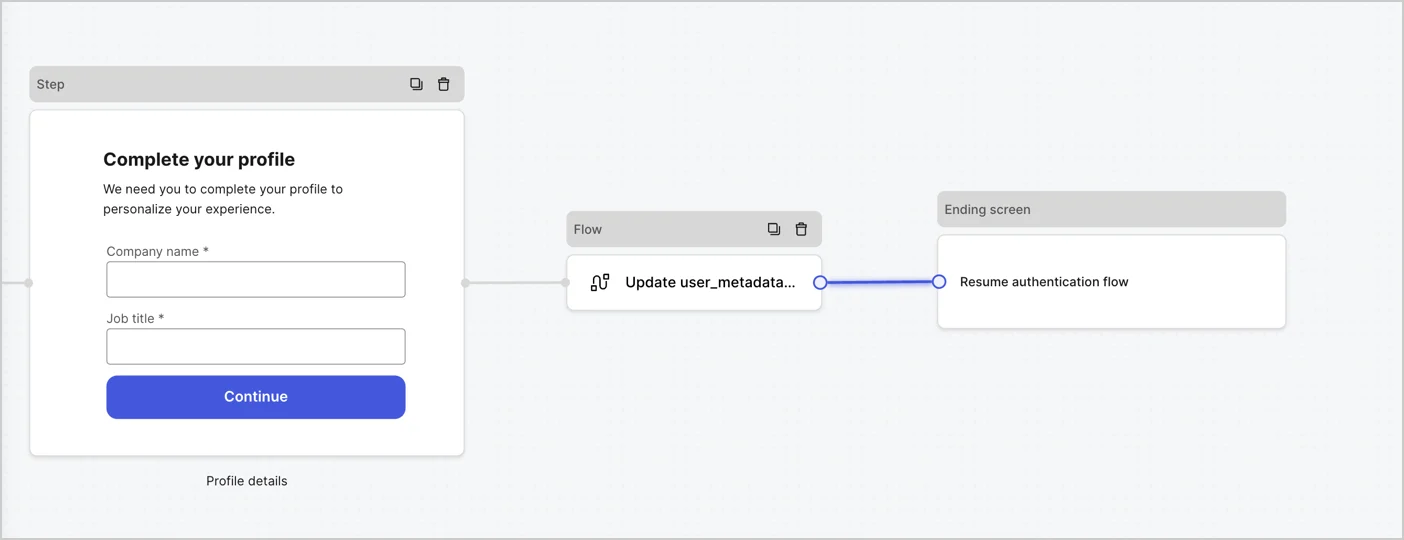
Add a **Flow** node after the **Step** node to update the `user_metadata` and resume the authentication flow by following these steps:

1. Select **Flow** from the bottom of the Form editor.
2. Remove the existing link between the **Step** and **Ending Screen** nodes.
3. Select the new **Flow** > **Click to add a flow** > **Create a new flow.**

   * Enter `Update user_metadata` in the **Name** field.
   * Select **Create**.
   * Select **Save**.
4. Link the **Flow** node to the **Step** and **Ending Screen** nodes as pictured below.
5. Select **Publish** to save.
<Frame>
  <img src="https://mintcdn.com/docs-staging-automated-sdk-version-update/YiJrrrWKxpgh6kDR/docs/images/cdy7uua7fh8z/5C91DaWn4LGtJT9BF87ssu/095171d0c452a287c44bfde12fd6d13f/link-nodes.png?fit=max&auto=format&n=YiJrrrWKxpgh6kDR&q=85&s=615bb47faf7970809089413ee9af4f91" alt="Dashboard > Actions > Forms > Form" data-og-width="1404" width="1404" data-og-height="540" height="540" data-path="docs/images/cdy7uua7fh8z/5C91DaWn4LGtJT9BF87ssu/095171d0c452a287c44bfde12fd6d13f/link-nodes.png" data-optimize="true" data-opv="3" srcset="https://mintcdn.com/docs-staging-automated-sdk-version-update/YiJrrrWKxpgh6kDR/docs/images/cdy7uua7fh8z/5C91DaWn4LGtJT9BF87ssu/095171d0c452a287c44bfde12fd6d13f/link-nodes.png?w=280&fit=max&auto=format&n=YiJrrrWKxpgh6kDR&q=85&s=f93a7d9dc8bf03ef95269cbc064b1204 280w, https://mintcdn.com/docs-staging-automated-sdk-version-update/YiJrrrWKxpgh6kDR/docs/images/cdy7uua7fh8z/5C91DaWn4LGtJT9BF87ssu/095171d0c452a287c44bfde12fd6d13f/link-nodes.png?w=560&fit=max&auto=format&n=YiJrrrWKxpgh6kDR&q=85&s=cd5e2bd38e6e6d6a12093575a7349ea0 560w, https://mintcdn.com/docs-staging-automated-sdk-version-update/YiJrrrWKxpgh6kDR/docs/images/cdy7uua7fh8z/5C91DaWn4LGtJT9BF87ssu/095171d0c452a287c44bfde12fd6d13f/link-nodes.png?w=840&fit=max&auto=format&n=YiJrrrWKxpgh6kDR&q=85&s=68ea52751f0290ed62bb9f7d96a2bdc4 840w, https://mintcdn.com/docs-staging-automated-sdk-version-update/YiJrrrWKxpgh6kDR/docs/images/cdy7uua7fh8z/5C91DaWn4LGtJT9BF87ssu/095171d0c452a287c44bfde12fd6d13f/link-nodes.png?w=1100&fit=max&auto=format&n=YiJrrrWKxpgh6kDR&q=85&s=efcf404babc1779c52fd557795ba4993 1100w, https://mintcdn.com/docs-staging-automated-sdk-version-update/YiJrrrWKxpgh6kDR/docs/images/cdy7uua7fh8z/5C91DaWn4LGtJT9BF87ssu/095171d0c452a287c44bfde12fd6d13f/link-nodes.png?w=1650&fit=max&auto=format&n=YiJrrrWKxpgh6kDR&q=85&s=0c4f785e577f0e113db1b3a84040600d 1650w, https://mintcdn.com/docs-staging-automated-sdk-version-update/YiJrrrWKxpgh6kDR/docs/images/cdy7uua7fh8z/5C91DaWn4LGtJT9BF87ssu/095171d0c452a287c44bfde12fd6d13f/link-nodes.png?w=2500&fit=max&auto=format&n=YiJrrrWKxpgh6kDR&q=85&s=a37a9cd9212da1243286dec482807c8d 2500w" />
</Frame>

Add an Auth0 Update user action to the flow by following these steps:

1. Select the **Update user\_metadata** flow, then select the **Edit Flow** to open the Flow editor in a new tab.
2. Below the **Start** action, select the **+** icon to add an **Update user** action. Complete the fields below, then select **Save** to continue.

   * **Connection**: Select from the dropdown the Vault connection to your M2M application.

   * **User ID**: Enter `{{context.user.user_id}}`.

   * **Body**: Copy and paste the following code to update the user\_metadata with `job_title` and `company_name` properties.

     ```json lines theme={null}
     {
        "user_metadata": {
           "job_title": "{{fields.job_title}}",
           "company_name": "{{fields.company_name}}"
        }
     }
     ```

   * Select **Save**.
3. Select **Publish** to save.

<Frame>
  <img src="https://mintcdn.com/docs-staging-automated-sdk-version-update/L9MdtnSVqJ4dx4-i/docs/images/cdy7uua7fh8z/65Jx4W5oIZJyyvA8z4HqIx/0661b1a8ca6361c54fc4fef07ba59f0b/update-user.png?fit=max&auto=format&n=L9MdtnSVqJ4dx4-i&q=85&s=256a73d854e3f6e7389fe89757848305" alt="Dashboard > Actions > Forms > Flows" data-og-width="1404" width="1404" data-og-height="244" height="244" data-path="docs/images/cdy7uua7fh8z/65Jx4W5oIZJyyvA8z4HqIx/0661b1a8ca6361c54fc4fef07ba59f0b/update-user.png" data-optimize="true" data-opv="3" srcset="https://mintcdn.com/docs-staging-automated-sdk-version-update/L9MdtnSVqJ4dx4-i/docs/images/cdy7uua7fh8z/65Jx4W5oIZJyyvA8z4HqIx/0661b1a8ca6361c54fc4fef07ba59f0b/update-user.png?w=280&fit=max&auto=format&n=L9MdtnSVqJ4dx4-i&q=85&s=5d25e02b3e65ab31e21a7d9dcfc7b65a 280w, https://mintcdn.com/docs-staging-automated-sdk-version-update/L9MdtnSVqJ4dx4-i/docs/images/cdy7uua7fh8z/65Jx4W5oIZJyyvA8z4HqIx/0661b1a8ca6361c54fc4fef07ba59f0b/update-user.png?w=560&fit=max&auto=format&n=L9MdtnSVqJ4dx4-i&q=85&s=cc7ca628c9b2be99da9c9d046fdbf7c8 560w, https://mintcdn.com/docs-staging-automated-sdk-version-update/L9MdtnSVqJ4dx4-i/docs/images/cdy7uua7fh8z/65Jx4W5oIZJyyvA8z4HqIx/0661b1a8ca6361c54fc4fef07ba59f0b/update-user.png?w=840&fit=max&auto=format&n=L9MdtnSVqJ4dx4-i&q=85&s=5930e66ed9e3f367529fcdc59b25f299 840w, https://mintcdn.com/docs-staging-automated-sdk-version-update/L9MdtnSVqJ4dx4-i/docs/images/cdy7uua7fh8z/65Jx4W5oIZJyyvA8z4HqIx/0661b1a8ca6361c54fc4fef07ba59f0b/update-user.png?w=1100&fit=max&auto=format&n=L9MdtnSVqJ4dx4-i&q=85&s=a33d9ee43e3f5ca7330d5eac43e0cca9 1100w, https://mintcdn.com/docs-staging-automated-sdk-version-update/L9MdtnSVqJ4dx4-i/docs/images/cdy7uua7fh8z/65Jx4W5oIZJyyvA8z4HqIx/0661b1a8ca6361c54fc4fef07ba59f0b/update-user.png?w=1650&fit=max&auto=format&n=L9MdtnSVqJ4dx4-i&q=85&s=abf19dc4fb7e9d522bfce3f2fd621662 1650w, https://mintcdn.com/docs-staging-automated-sdk-version-update/L9MdtnSVqJ4dx4-i/docs/images/cdy7uua7fh8z/65Jx4W5oIZJyyvA8z4HqIx/0661b1a8ca6361c54fc4fef07ba59f0b/update-user.png?w=2500&fit=max&auto=format&n=L9MdtnSVqJ4dx4-i&q=85&s=124b9cb6bacf9b2aff487e0c9090cf2f 2500w" />
</Frame>

### Retrieve the form render code

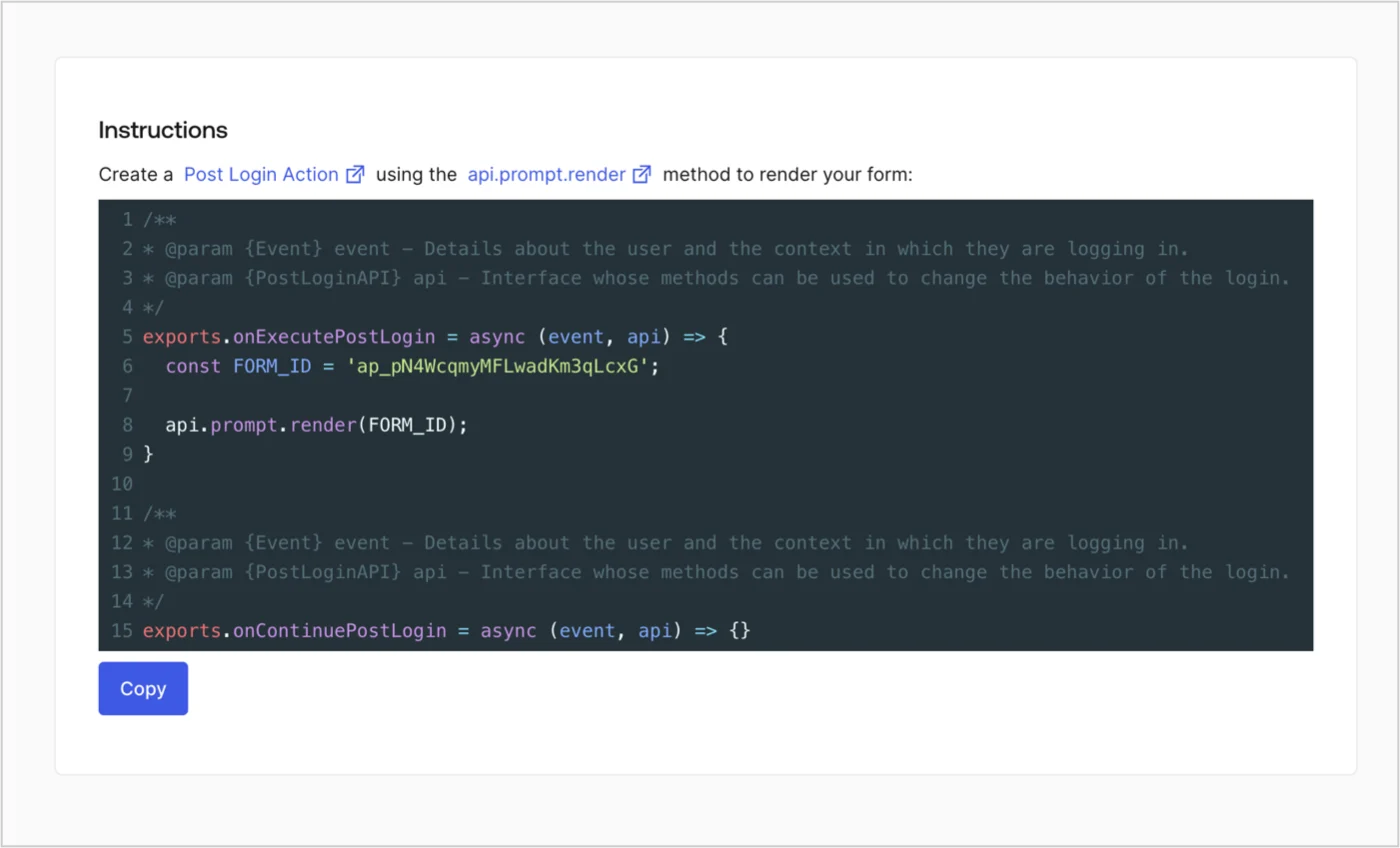
Retrieve the form render code to visually render the form with a custom Post Login Action by following these steps:

* From the Form editor, select **`<> Render`**.
* Select **Copy**.
<Frame>
  <img src="https://mintcdn.com/docs-staging-automated-sdk-version-update/2unembXSltPEZdpF/docs/images/cdy7uua7fh8z/2EIUzc539sq9lwoTKbjoJv/496a864c0fc44a782c9cadca119dbfb0/embed.png?fit=max&auto=format&n=2unembXSltPEZdpF&q=85&s=f9e7468497348654f9b54e6cdaef5fae" alt="Dashboard > Actions > Forms > Form > Embed" data-og-width="1400" width="1400" data-og-height="848" height="848" data-path="docs/images/cdy7uua7fh8z/2EIUzc539sq9lwoTKbjoJv/496a864c0fc44a782c9cadca119dbfb0/embed.png" data-optimize="true" data-opv="3" srcset="https://mintcdn.com/docs-staging-automated-sdk-version-update/2unembXSltPEZdpF/docs/images/cdy7uua7fh8z/2EIUzc539sq9lwoTKbjoJv/496a864c0fc44a782c9cadca119dbfb0/embed.png?w=280&fit=max&auto=format&n=2unembXSltPEZdpF&q=85&s=58e6619726764eec7ecbadfd050183ff 280w, https://mintcdn.com/docs-staging-automated-sdk-version-update/2unembXSltPEZdpF/docs/images/cdy7uua7fh8z/2EIUzc539sq9lwoTKbjoJv/496a864c0fc44a782c9cadca119dbfb0/embed.png?w=560&fit=max&auto=format&n=2unembXSltPEZdpF&q=85&s=a979dfd399b4789f971580b2be5c39ae 560w, https://mintcdn.com/docs-staging-automated-sdk-version-update/2unembXSltPEZdpF/docs/images/cdy7uua7fh8z/2EIUzc539sq9lwoTKbjoJv/496a864c0fc44a782c9cadca119dbfb0/embed.png?w=840&fit=max&auto=format&n=2unembXSltPEZdpF&q=85&s=bb7e8c8bebddf22958c3f375235bf357 840w, https://mintcdn.com/docs-staging-automated-sdk-version-update/2unembXSltPEZdpF/docs/images/cdy7uua7fh8z/2EIUzc539sq9lwoTKbjoJv/496a864c0fc44a782c9cadca119dbfb0/embed.png?w=1100&fit=max&auto=format&n=2unembXSltPEZdpF&q=85&s=02d6cc236c7550d534860a406bc19e47 1100w, https://mintcdn.com/docs-staging-automated-sdk-version-update/2unembXSltPEZdpF/docs/images/cdy7uua7fh8z/2EIUzc539sq9lwoTKbjoJv/496a864c0fc44a782c9cadca119dbfb0/embed.png?w=1650&fit=max&auto=format&n=2unembXSltPEZdpF&q=85&s=7af008204d5da4ec4e5718abd56b3e45 1650w, https://mintcdn.com/docs-staging-automated-sdk-version-update/2unembXSltPEZdpF/docs/images/cdy7uua7fh8z/2EIUzc539sq9lwoTKbjoJv/496a864c0fc44a782c9cadca119dbfb0/embed.png?w=2500&fit=max&auto=format&n=2unembXSltPEZdpF&q=85&s=40ff04d1e1fabc6f18f11566176fcd33 2500w" />
</Frame>

## Create a Post Login Action

Create a post-login Action to render your form by following these steps:

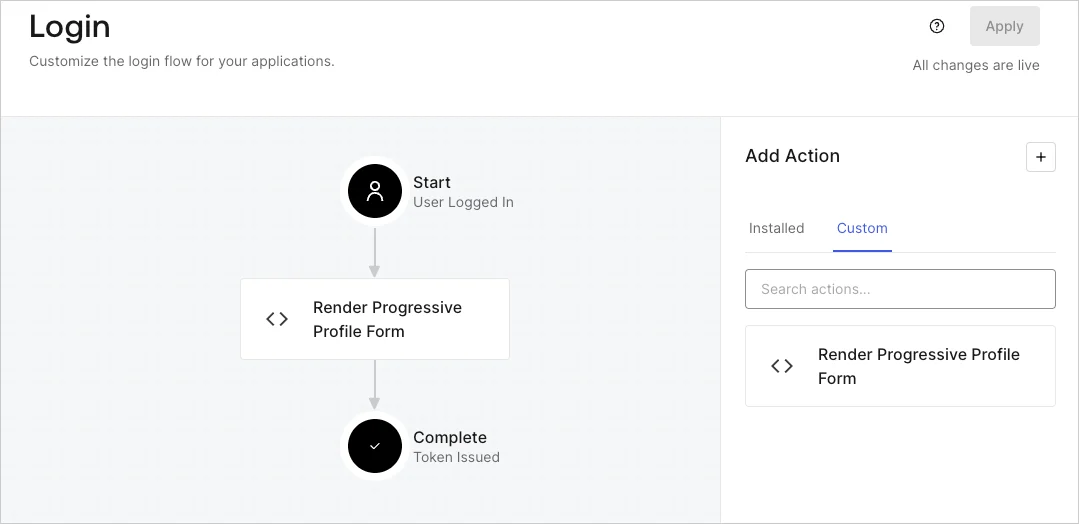
1. Navigate to **Auth0 Dashboard > Actions > Flows > Login.**
2. Select the **+** icon and select **Build from scratch**:

   * **Name**: Enter `Render Progressive Profile Form`.
   * **Trigger**: Select `Login / Post Login`.
   * **Runtime**: Select the recommended version.
3. Select **Create**.

To configure the post-login Action:

1. Delete the existing code from the Code editor.
2. Paste the form embed code into the Code editor.
3. Edit the code to define the conditional logic that will render the form.

   ```javascript lines theme={null}
   /**
   * @param {Event} event - Details about the user and the context in which they are logging in.
   * @param {PostLoginAPI} api - Interface whose methods can be used to change the behavior of the login.
   */
   exports.onExecutePostLogin = async (event, api) => {
     const FORM_ID = 'REPLACE_WITH_YOUR_FORM_ID';

     if (
       event.stats.logins_count > 2 &&
       !event.user.user_metadata.company_name &&
       !event.user.user_metadata.job_title
     ) {
       api.prompt.render(FORM_ID);
     }
   }

   exports.onContinuePostLogin = async (event, api) => { }
   ```

   <Callout icon="file-lines" color="#0EA5E9" iconType="regular">
     The example code above will render the form when a user has a login count > 2 and is missing the user metadata company\_name and job\_title properties.
   </Callout>
4. Select **Deploy.**
5. Drag and Drop the **Render Progressive Profile Form** Action to the **Login** flow.
   <Frame>
     <img src="https://mintcdn.com/docs-staging-automated-sdk-version-update/MSVHclzQYy9OW8Z0/docs/images/cdy7uua7fh8z/1QjjZdpTqTxx012UDN4xk9/99fba5ef4068a5688f1762eea7f42976/renderprogessiveprofile.png?fit=max&auto=format&n=MSVHclzQYy9OW8Z0&q=85&s=2384e02691aac5303dbb9e3c9ba909dc" alt="Dashboard > Forms > Use Cases Progressive Profile Login Action" data-og-width="1079" width="1079" data-og-height="524" height="524" data-path="docs/images/cdy7uua7fh8z/1QjjZdpTqTxx012UDN4xk9/99fba5ef4068a5688f1762eea7f42976/renderprogessiveprofile.png" data-optimize="true" data-opv="3" srcset="https://mintcdn.com/docs-staging-automated-sdk-version-update/MSVHclzQYy9OW8Z0/docs/images/cdy7uua7fh8z/1QjjZdpTqTxx012UDN4xk9/99fba5ef4068a5688f1762eea7f42976/renderprogessiveprofile.png?w=280&fit=max&auto=format&n=MSVHclzQYy9OW8Z0&q=85&s=0f84919fa62971095dacdaf053e5be0a 280w, https://mintcdn.com/docs-staging-automated-sdk-version-update/MSVHclzQYy9OW8Z0/docs/images/cdy7uua7fh8z/1QjjZdpTqTxx012UDN4xk9/99fba5ef4068a5688f1762eea7f42976/renderprogessiveprofile.png?w=560&fit=max&auto=format&n=MSVHclzQYy9OW8Z0&q=85&s=2756349691ac4a938b1d8ee81a8adf52 560w, https://mintcdn.com/docs-staging-automated-sdk-version-update/MSVHclzQYy9OW8Z0/docs/images/cdy7uua7fh8z/1QjjZdpTqTxx012UDN4xk9/99fba5ef4068a5688f1762eea7f42976/renderprogessiveprofile.png?w=840&fit=max&auto=format&n=MSVHclzQYy9OW8Z0&q=85&s=b2e9409467405bba70143d9824f6f8fe 840w, https://mintcdn.com/docs-staging-automated-sdk-version-update/MSVHclzQYy9OW8Z0/docs/images/cdy7uua7fh8z/1QjjZdpTqTxx012UDN4xk9/99fba5ef4068a5688f1762eea7f42976/renderprogessiveprofile.png?w=1100&fit=max&auto=format&n=MSVHclzQYy9OW8Z0&q=85&s=2381c3ab310fc50aa8cb1622a34bf3bb 1100w, https://mintcdn.com/docs-staging-automated-sdk-version-update/MSVHclzQYy9OW8Z0/docs/images/cdy7uua7fh8z/1QjjZdpTqTxx012UDN4xk9/99fba5ef4068a5688f1762eea7f42976/renderprogessiveprofile.png?w=1650&fit=max&auto=format&n=MSVHclzQYy9OW8Z0&q=85&s=d6a33a4a6c5cd48fb9bb60524710d8d6 1650w, https://mintcdn.com/docs-staging-automated-sdk-version-update/MSVHclzQYy9OW8Z0/docs/images/cdy7uua7fh8z/1QjjZdpTqTxx012UDN4xk9/99fba5ef4068a5688f1762eea7f42976/renderprogessiveprofile.png?w=2500&fit=max&auto=format&n=MSVHclzQYy9OW8Z0&q=85&s=caa4468142dad7bdc84940205498c5cf 2500w" />
   </Frame>
6. Select **Apply**.

### Test implementation

Test the implementation by following these steps:

1. Log in with an existing user whose login count is greater than 2 and their `user_metadata` attributes `company_name` and `job_title` have no values.
2. The post-login action in the Login flow will render the form and prompt for the information.
3. Select **Auth0 Dashboard > User Management > Users,** locate the user and verify that the `user_metadata` attributes `company_name` and `job_title` contain information.
